
How to sign in to StretchDollar and reset your password
This is for employer admins and employees. Brokers and agents sign in to the ICHRA Partner Portal instead; see the link at the bottom of the sign-in page.
[Loom clip: signing in and resetting your password, about 30 seconds. Add after the new sign-in pages launch.]
Sign in
- Go to dashboard.stretchdollar.com/signin, or click Log In at the top of StretchDollar.com.
- On Sign in to StretchDollar, enter your Email and Password. Click the eye icon to show or hide your password.
- Click Sign in.
Use the email address your employer invited you with (employees) or the one you signed up with (admins).
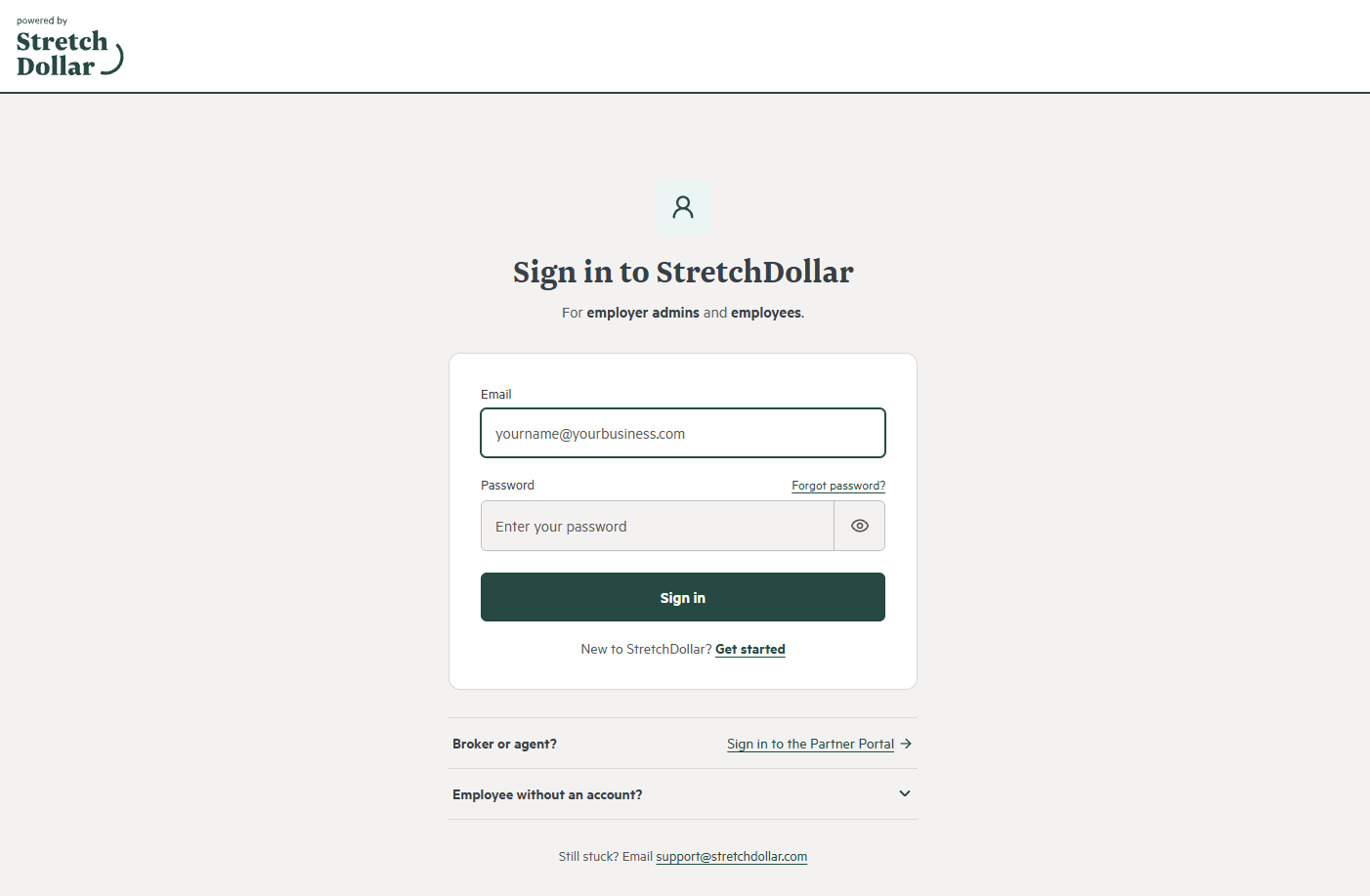
Forgot your password?
- On the sign-in page, click Forgot password?
- On Reset your password, enter your email and click Send reset link.
- Open the email and click the link. On Set a new password, enter your New password, type it again under Confirm password, and click Set password.
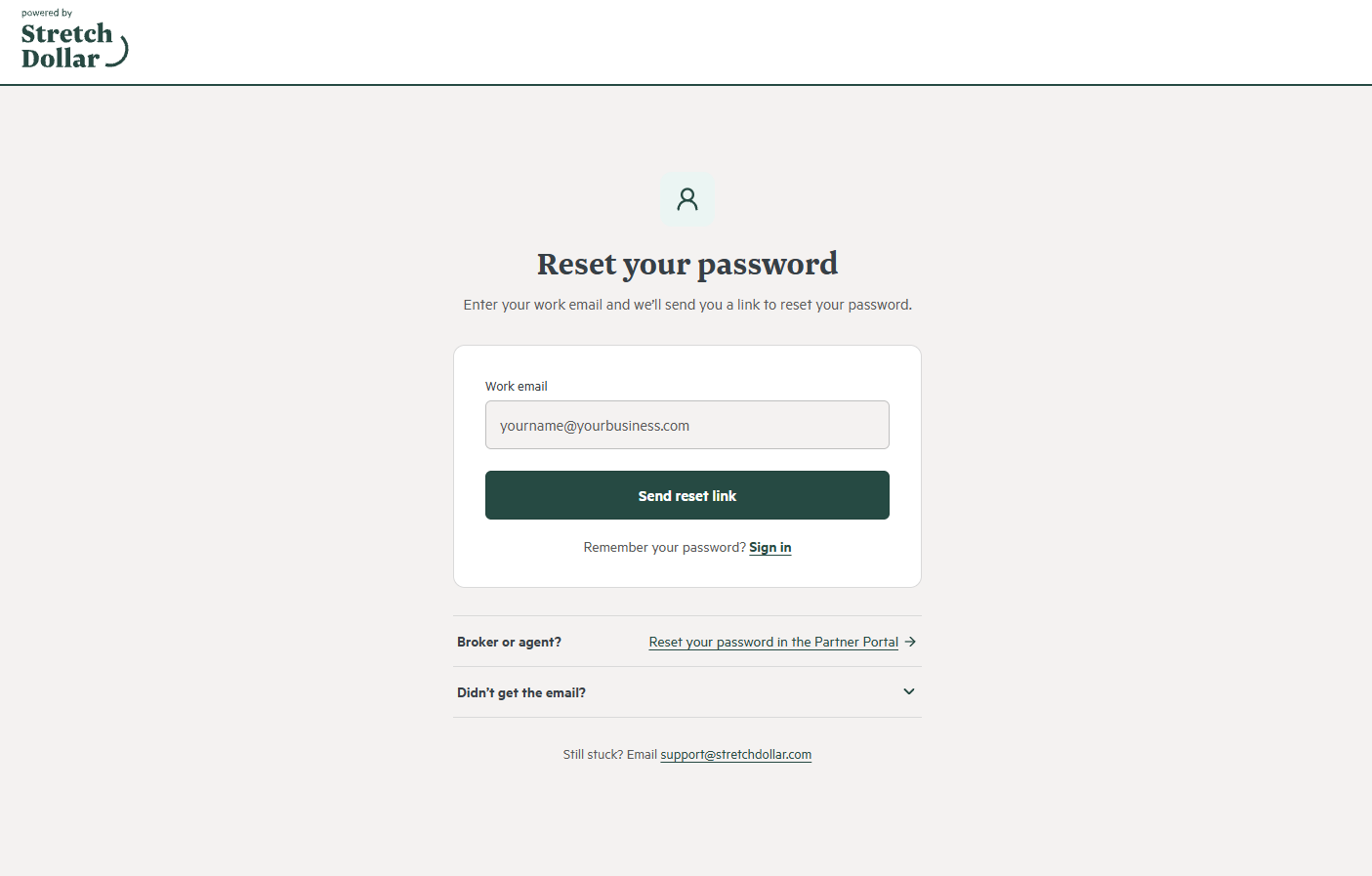
Reset links expire and each one works only once. If you see "This link no longer works", go back to the sign-in page and ask for a new link.
Didn't get the reset email?
- Check your spam or junk folder.
- Make sure you typed the same email you use for StretchDollar.
- Employees: if it still isn't there, ask your employer to confirm they've invited you to their team.
I'm an employee and don't have an account
Employees can't create their own account. Ask your employer to send you an invite. You'll get an email with a link to set up your account and choose a password.
New to StretchDollar (employers)?
Click Get started at the bottom of the sign-in page to set up your company.
Broker or agent?
Use Sign in to the Partner Portal at the bottom of the sign-in page, or Reset your password in the Partner Portal on the reset page. Partner accounts are separate from employer and employee accounts.
Still stuck? Email [email protected] with the email address you're trying to sign in with.